
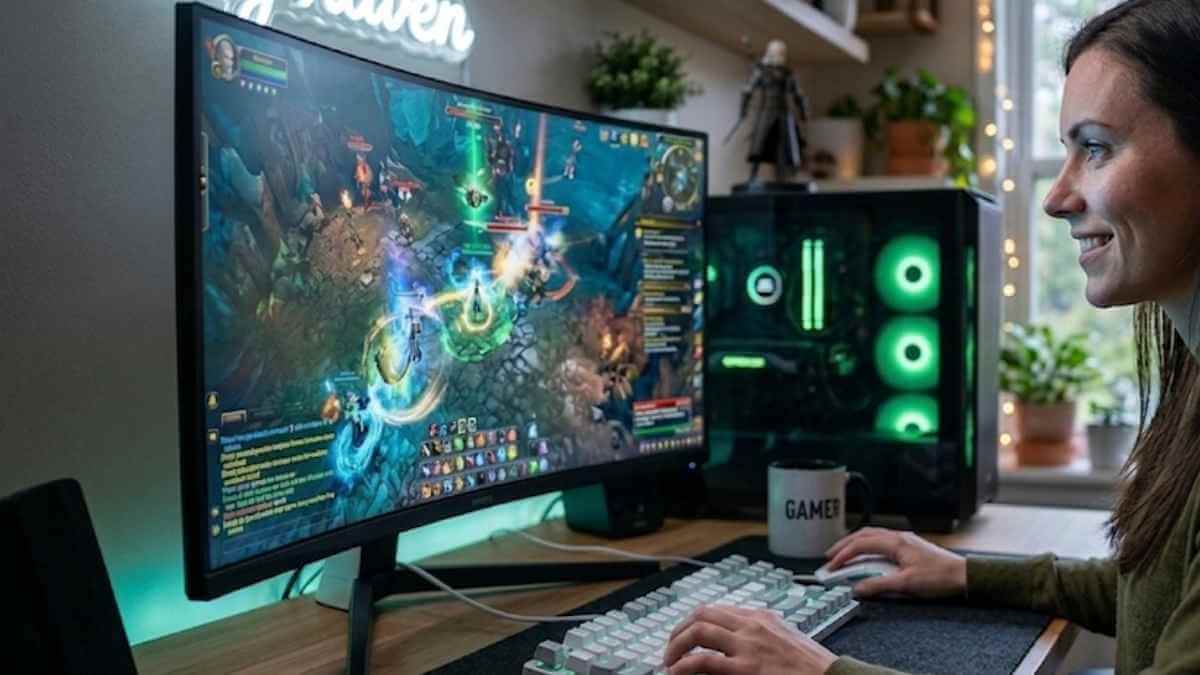

You’ve probably watched a dozen YouTube videos and still feel like you need a degree to pick the right gaming monitor. The spec sheets pile on refresh rate, response time, panel type, and resolution, and none of it tells you what actually matters for your specific setup.
We are going to walk you through exactly how to choose a monitor for gaming, starting with your actual hardware, not the marketing fluff.
The single biggest mistake buyers make is overspending on a monitor that their graphics card cannot feed. A 4K 144Hz screen is a complete waste of money if your graphics card tops out at 60 frames per second in your favorite game. The monitor is just a window; your graphics card is the actual view. Let’s fix that connection right now.
Quick Answer: The 30-Second Buying Cheat Sheet
To choose the perfect gaming monitor, you must match the screen’s specs to the real-world performance of your graphics card (GPU).
- The Sweet Spot: 27-inch, 1440p (QHD), 144Hz–240Hz, IPS or OLED panel. This is the absolute best baseline for 90% of PC gamers.
- The Esports Pick: 24-inch, 1080p (FHD), 240Hz+, Fast IPS panel. Built purely for speed, low input lag, and competitive frame rates.
- The Premium Pick: 32-inch+, 4K (UHD) or 21:9 Ultrawide, 144Hz, OLED panel. Designed for maximum visual immersion in story-driven titles.
Always verify that your chosen monitor explicitly supports Variable Refresh Rate (VRR) via NVIDIA G-SYNC Compatible or AMD FreeSync to eliminate screen tearing.
What You Need to Know Before You Even Look at Specs
The gaming monitor industry loves to throw big numbers at you. 360Hz. 1ms response time. 4K resolution. HDR1000. But these numbers are not equally important for everyone.
Your budget, your hardware, and your game library all shape which specs actually matter.
The most important spec is the one that fits your GPU. A 4K monitor is useless if your graphics card can only push 30 frames per second at that resolution. A 360Hz screen is wasted on a GPU that can barely crack 120 FPS in your favorite game.
You need to start with what your hardware can deliver, then work backward to the monitor.
Your game genre matters too. Competitive shooters like Valorant and Overwatch reward high frame rates and low input lag. Story-driven titles like The Witcher or Cyberpunk 2077 benefit from rich colors and deep contrast.
No single monitor does everything perfectly. You will have to make trade-offs.
The good news is that you do not need to spend a fortune. A well-chosen mid-range monitor can serve you for years. The key is knowing which specs to prioritize and which ones are marketing fluff.
Let us walk through the decision step by step.
Step 1: What Games Do You Play Most?
Your game library decides almost every spec you should care about. No single monitor does everything perfectly, so you will have to make trade-offs. Knowing your primary genre prevents you from overspending on heavy marketing specs you won’t ever actually use.
The Competitive Multiplayer Profile
If you spend your gaming sessions in fast-paced shooters like Valorant, CS2, Overwatch, or Apex Legends:
- The Priority: High refresh rates and ultra-low input latency.
- The Target Specs: You want at least a 144Hz to 240Hz screen paired with a panel that hits 1ms to 2ms real-world response.
- The Reality: You won’t notice the visual sharpness difference between 1440p and 1080p in the middle of a frantic crosshair fight. However, you will instantly notice screen tearing or muddy ghosting.
The Cinematic Single-Player Profile
If you prefer living in immersive, story-driven open worlds or simulation games like The Witcher 3, Cyberpunk 2077, Red Dead Redemption 2, or Elden Ring:
- The Priority: High resolution, crisp image clarity, and deep color contrast.
- The Target Specs: A 1440p (2K) or 4K screen utilizing an IPS or OLED panel.
- The Reality: Rich story games don’t require pixel-perfect, twitchy tracking. You can easily get by with a fluid 60Hz to 120Hz refresh cycle because breathtaking visuals matter far more to your experience than extreme speed.
This foundational choice heavily shapes your upfront costs. A high-refresh 1080p competitive screen can easily sit under $200, while a premium 4K high-refresh immersive display can quickly pass $700.
Note: Once you establish your gaming genre’s exact needs, check out our deep-dive comparison on different monitor panel technologies to lock down the right screen type.
Step 2: What Can Your Graphics Card Actually Drive?
This is the single most important decision point in the whole process. Your graphics card (GPU) is the engine that determines the maximum resolution and frame rate your monitor can display meaningfully. Buying a 4K 144Hz monitor with a mid-range card is like putting racing slicks on a family sedan; the hardware just can’t keep up.
If your GPU cannot push enough frames, a high-refresh-rate monitor will look absolutely no different than a standard 60Hz screen. If you are building a new system, always factor in the GPU cost before the monitor cost.
A budget monitor paired with a strong GPU will give you a significantly better experience than an expensive monitor paired with a weak GPU. The monitor is a window. The GPU is the view.
Match Your Resolution to Your GPU Capability
Look up benchmarks for your specific graphics card in the games you play most. To prevent you from paying for unused headroom, here is the rough rule of thumb based on current GPU tiers:
| GPU Tier | Example Cards | Best Resolution | Realistic FPS Range (AAA titles) | Recommended Refresh Rate |
|---|---|---|---|---|
| Entry | GTX 1660, RTX 3050, RX 6600 | 1080p | 60–90 FPS | 60Hz–120Hz |
| Mid-range | RTX 3060 Ti, RTX 4060, RX 6700 XT | 1440p | 60–110 FPS | 100Hz–165Hz |
| High-end | RTX 4070 Super, RX 7800 XT | 1440p or 4K | 80–150 FPS (at 1440p) / 50–80 FPS (at 4K) | 144Hz–240Hz (1440p) or 120Hz (4K) |
| Enthusiast | RTX 4080 Super, RTX 4090, RX 7900 XTX | 4K | 80–150 FPS at 4K | 120Hz–240Hz |
If you are unsure, 1440p at 144Hz is the sweet spot for most mid-range to high-end builds. It offers a noticeable jump in clarity over 1080p without the punishing, system-crushing GPU demands of native 4K. A card like the RTX 4070 handles 1440p comfortably, but it will struggle heavily to hit 100 FPS in demanding titles at 4K without aggressively using upscaling technologies like DLSS or FSR.
Consider Future Upgrades & VRR
If you plan to upgrade your GPU in the next year or two, you can absolutely buy a monitor that supports higher specs right now. Just be aware that you will not see those fluid benefits until you physically upgrade the graphics card. Many gamers do this, and it is a perfectly reasonable strategy; just do not overspend on a massive screen that your current GPU cannot drive at all.
This is where VRR (Variable Refresh Rate) becomes critical. Technologies like G-Sync and FreeSync match your monitor’s refresh rate directly to your GPU’s live output. So even if your frame rate dips down to 70 FPS on a 144Hz monitor in a heavy scene, VRR acts as a safety net to ensure you won’t see screen tearing or distracting stutters.
Step 3: How Much Refresh Rate Can You Actually Drive?
Refresh rate is the number of times the monitor updates the image per second, measured in Hertz (Hz). A 144Hz monitor refreshes 144 times per second. But here is the catch: your GPU must deliver at least 144 frames per second to see the benefit.
The Relationship Between FPS and Refresh Rate
If your GPU outputs 60 FPS and your monitor is 144Hz, you will see 60 frames per second. The monitor refreshes more often, but it is just showing the same frame multiple times. You will not get the smooth motion that 144Hz provides.
To get the full benefit of a high refresh rate monitor, your GPU must consistently hit frame rates near that refresh rate. If you play competitive shooters and your GPU can push 150+ FPS, a 144Hz or 240Hz monitor gives you smoother motion and clearer tracking. The difference between 60Hz and 144Hz is night and day. You see enemies sooner, recoil moves more predictably, and the whole experience feels snappier.
If your GPU tops out at 80 FPS in your favourite games, a 240Hz monitor won’t help. Your eyes will see the same 80 frames no matter how fast the screen can refresh. In that case, save your money and get a 100Hz or 120Hz monitor with better colour or resolution instead.
What Refresh Rate Should You Choose?
| Refresh Rate | Best For | GPU Requirement | Typical Cost |
|---|---|---|---|
| 60Hz | Casual gaming, console, office work | Any GPU | $100–200 |
| 120Hz | Console gaming, mid-range PC | Mid-range GPU | $200–350 |
| 144Hz | Sweet spot for most PC gamers | Mid- to high-end GPU | $250–500 |
| 240Hz | Competitive FPS (Valorant, CS2) | High-end GPU | $400–800 |
| 360Hz+ | Pro-level esports | Top-tier GPU | $700+ |
What About Console Gamers?
For console gamers, the math is simpler. The PS5 and Xbox Series X max out at 120Hz output on supported titles, and often at 60 FPS for demanding games. A 120Hz monitor with HDMI 2.1 handles that perfectly. You don’t need 240Hz for consoles.
The sweet spot for most PC gamers as of 2026 is 144Hz on a 1440p panel. It gives a big visual upgrade over 1080p and enough smoothness for competitive play with a mid-range card.
Variable Refresh Rate Helps, But Does Not Fix Everything
VRR (Variable Refresh Rate) technologies like G-Sync and FreeSync allow the monitor to match the GPU’s frame rate. This eliminates screen tearing and reduces stuttering when the frame rate fluctuates. VRR is extremely useful, but it does not make a low frame rate feel smooth. If your GPU cannot push enough frames, VRR will not fix that.
Think of VRR as a safety net. It smooths out the dips between 60 FPS and 90 FPS on a 144Hz monitor. But it cannot turn 30 FPS into 60 FPS.
Step 4: Panel Type — IPS vs VA vs TN vs OLED
The panel type determines how the monitor looks, how fast it responds, and how much it costs. Each panel type has its own strengths and weaknesses. Understanding them is the key to matching the monitor to your game genre.
IPS (In-Plane Switching)
IPS panels are the most popular choice for gaming monitors today. They offer good color accuracy, wide viewing angles, and decent response times. Modern IPS panels can reach 1ms GtG response time, which is fast enough for competitive gaming.
Strengths:
- Excellent color accuracy (good for both gaming and creative work)
- Wide viewing angles, so colors do not shift when you move your head
- Generally fast response times
Weaknesses:
- Lower contrast ratio compared to VA and OLED (blacks look more like dark gray)
- Can suffer from backlight bleed in dark scenes
- Usually more expensive than TN panels
Best for: Most gamers, especially those who play a mix of competitive and story-driven games. IPS is the safest all-rounder.
VA (Vertical Alignment)
VA panels offer the best contrast ratio among LCD panels. Blacks look deep and rich, which is great for horror games, dark scenes, and immersive single-player titles. VA panels typically have slower response times than IPS, which can cause motion blur in fast-paced games.
Strengths:
- High contrast ratio (3000:1 to 5000:1, compared to 1000:1 for IPS)
- Deep blacks and good color saturation
- Generally cheaper than IPS at the same size
Weaknesses:
- Slower response times, especially in dark transitions (black smearing)
- Narrower viewing angles than IPS
- Color accuracy can be less consistent
Best for: Story-driven games, RPGs, horror titles, and media consumption. Not ideal for competitive shooters where fast motion is critical.
TN (Twisted Nematic)
TN panels are the oldest technology in this list. They are fast and cheap, but they sacrifice image quality significantly. Colors are washed out, viewing angles are poor, and the overall image quality is noticeably worse than IPS or VA.
Strengths:
- Very fast response times (1ms or less)
- High refresh rates available at lower prices
- Lowest input lag of any LCD panel type
Weaknesses:
- Poor color accuracy and saturation
- Terrible viewing angles (colors shift dramatically when you move your head)
- Low contrast ratio
Best for: Competitive esports players who prioritize speed over image quality. Not recommended for any other use case.
OLED (Organic Light Emitting Diode)
OLED panels are the premium choice. Each pixel produces its own light, so blacks are truly black, colors are vibrant, and response times are incredibly fast. OLED monitors will become more affordable as of 2026, but they are still expensive.
Strengths:
- Perfect blacks (infinite contrast ratio)
- Exceptional color accuracy and vibrancy
- Sub-1ms response times with no ghosting
- Excellent viewing angles
Weaknesses:
- Risk of burn-in with static elements (HUDs, taskbars)
- Still expensive compared to LCD options
- Limited brightness in some HDR scenarios
- Fewer size and refresh rate options
Best for: Enthusiasts who want the best image quality for single-player games and media. Suitable for competitive gaming if you manage burn-in risk.
Panel Type Comparison Table
| Panel Type | Contrast | Color Accuracy | Speed | Viewing Angles | Best For |
|---|---|---|---|---|---|
| TN | Poor | Poor | Excellent | Poor | Competitive esports |
| IPS | Average | Good | Good | Good | All-round gaming |
| VA | Good | Average | Fair | Average | Immersive single-player |
| OLED | Excellent | Excellent | Excellent | Excellent | Premium image quality |
How to Choose Based on Your Game Genre
Do not buy a TN panel for a general-use monitor. The image quality is poor enough that you will notice it every time you watch a movie or browse the web. IPS is the best all-rounder for most people.
To make your choice dead simple, match your primary game genre to these clear guidelines:
- Competitive FPS Purist (Valorant, CS2, Overwatch): Prioritize speed. A 240Hz TN or fast IPS panel will serve you well. You need raw performance and ultra-low input latency over heavy visuals.
- Immersive Story / RPG / Explorer (Cyberpunk, Witcher, Elden Ring): Prioritize image quality. VA or IPS panels give you deeper blacks and richer colors, while OLED is the ultimate choice if you have the budget.
- Atmospheric Gaming on a Budget (Horror, Racing, Simulators): Go with a VA panel. The deep blacks and high contrast enhance visual depth, making dark scenes pop without the high cost of OLED.
- No Budget Limits, Pure Perfection: Go straight for OLED. It delivers the absolute best visual experience across every single genre with perfect contrast and instant pixel transitions.
Step 5: Don’t Ignore Response Time and VRR
Response time and variable refresh rate (VRR) are two specs that marketers love to oversimplify. A monitor that claims “1ms response time” sounds amazing. But that number is rarely the full story.
What Response Time Actually Means
Response time measures how quickly a pixel changes from one color to another. It is usually stated as gray-to-gray (GtG) in milliseconds. Lower is better. A 1ms panel changes pixels faster than a 4ms panel.
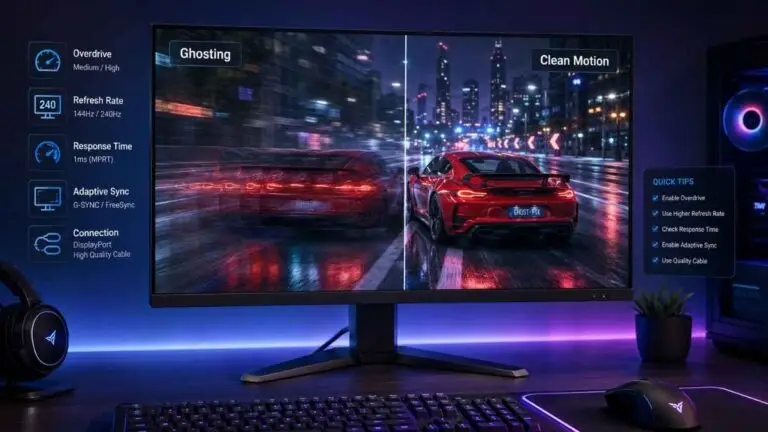
But here is the catch. Manufacturers often measure response time under ideal conditions. They use the fastest overdrive setting, which can introduce overshoot or inverse ghosting. That is when pixels overshoot their target color, creating a bright trail behind moving objects.
Real-world response times are often 2 to 3 milliseconds slower than the advertised number. A monitor labeled “1ms” might actually deliver 3 to 4ms in normal use. That is still good for most gamers. The key is to look for reviews that measure actual GtG performance, not just the marketing claim.
Why Response Time Matters for Gaming
Slow response time causes motion blur. Fast-moving objects leave a trail, making it hard to track targets in competitive games. This is different from the blur caused by low frame rates. It is a physical limitation of the panel.
VA panels are the most prone to this issue. They have slower pixel transitions, especially in dark areas. This creates an effect called black smearing. Dark objects leave a dark trail behind them. It is very noticeable in games with dark scenes or fast camera movement.
IPS and OLED panels generally have faster response times. TN panels are the fastest but sacrifice image quality. If you play competitive shooters, prioritize a panel with measured response times under 4ms GtG.
VRR Explained Simply
Variable refresh rate (VRR) lets the monitor match its refresh rate to the GPU’s frame rate in real time. This eliminates screen tearing without the input lag of traditional V-Sync. There are two main standards: G-Sync (Nvidia) and FreeSync (AMD).
Most modern monitors support FreeSync, and many of those are also G-SYNC Compatible. That means they work with both Nvidia and AMD GPUs. The experience is nearly identical in practice. The main difference is certification. G-Sync Ultimate monitors have stricter testing and a hardware module that ensures consistent performance.
Does VRR Really Matter?
Yes, but it is not a magic fix. VRR smooths out frame rate fluctuations between about 40 FPS and your monitor’s maximum refresh rate. If your GPU drops to 30 FPS, VRR cannot fix that. It just prevents tearing during the dips.
For most gamers, VRR is a nice-to-have, not a must-have. If you play competitive games where you consistently hit high frame rates, tearing is less noticeable. If you play single-player games where frame rates vary more, VRR is more valuable.
Our recommendation is to get a monitor with FreeSync or G-Sync Compatible support. It adds little to the cost and provides a smoother experience. Just make sure to enable it in your GPU’s control panel after setup. Many users forget this step and wonder why tearing persists.
Adjusting Settings for Best Performance
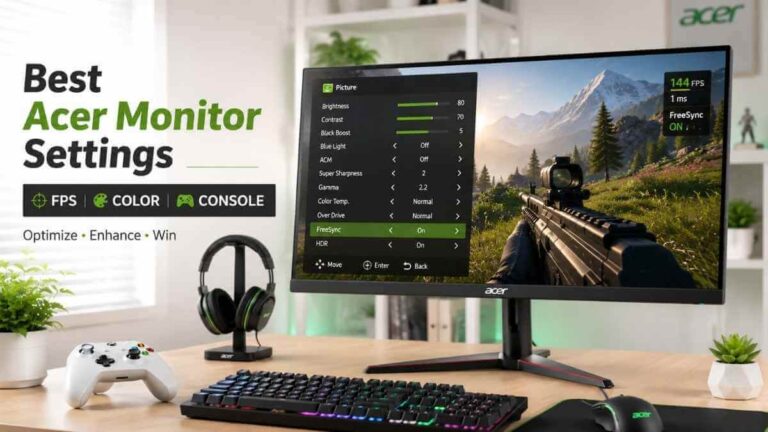
After you buy a monitor, you should spend a few minutes adjusting its settings. Most gaming monitors ship with overdrive set to “Fast” or “Extreme.” This can cause overshoot. Set it to “Normal” or “Off” and test with a moving test pattern. Adjust up until you see artifacts, then dial back one step.
For color settings, start with the “sRGB” or “Standard” mode. Gaming modes often oversaturate colors and crush shadows. You can always adjust from a neutral baseline.
Our guide on adjusting your monitor’s settings properlycovers the specific steps for different brands.
Step 6: A Simple Decision Framework for Every Budget and Genre
Now it is time to put it all together. Here is a step-by-step framework that works for most buyers. Follow it in order.
1: Determine Your Budget
Your budget is the first filter. It determines which resolution, refresh rate, and panel type combinations are available. Here is what you can expect at each price point.
| Budget Tier | Price Range | Typical Specs | Ideal Screen Size | Best For |
|---|---|---|---|---|
| Entry | $150 to $250 | 1080p, 144Hz, IPS or VA | 24 inches | Budget builds, competitive gaming |
| Mid | $300 to $500 | 1440p, 144Hz to 165Hz, IPS | 27 inches | Best all-round value |
| High | $550 to $800 | 1440p, 240Hz, IPS or OLED | 27 inches | High-end, competitive, and immersive |
| Premium | $900+ | 4K, 144Hz+, OLED or Mini-LED | 32 inches+ | Enthusiast builds |
If your budget is under $200, focus on 1080p 144Hz IPS panels. They offer the best balance of speed and image quality for the price. Options in this range are well documented in our roundup of budget-friendly gaming monitors.
2: Identify Your Primary Game Genre
Your main game genre determines which specs to prioritize. Use this flowchart.
If you play competitive shooters (Valorant, CS2, Overwatch, Apex):
- Prioritize refresh rate and response time over resolution.
- Target 240Hz or higher if your GPU can push the frames.
- 1080p or 1440p is fine. 4K is not necessary.
- Fast IPS or TN panel.
If you play story-driven games (Cyberpunk, Red Dead, Elden Ring, RPGs):
- Prioritize image quality over refresh rate.
- Target 1440p or 4K at 60Hz to 144Hz.
- IPS or OLED panel for color and contrast.
- VA panel is a good budget option for deep blacks.
If you play a mix of both:
- Target 1440p at 144Hz to 165Hz with an IPS panel.
- This is the sweet spot for most gamers.
- It handles fast shooters well and looks great in slower games.
If you play racing or flight sims:
- Consider an ultrawide monitor (3440×1440) for immersion.
- 144Hz is sufficient.
- IPS or VA panel. VA works well here because contrast enhances depth.
3: Check Your GPU’s Capability
Go back to Step 1. Look up your GPU’s performance in your target games. If you are buying a new GPU, factor that cost into the budget. A $400 monitor paired with a $200 GPU will underperform. A $300 monitor paired with a $500 GPU will shine.
4: Choose a Panel Type
Based on your genre and budget, pick a panel type.
- Competitive shooters and budget: Fast IPS or TN
- All-round gaming and mid-range: IPS
- Immersive gaming and budget: VA
- Premium image quality: OLED
If you are still unsure, our detailed breakdown of different panel technologies can help you decide.
5: Pick a Screen Size
Match the size to your resolution and desk space.
- 24 inches: Best for 1080p. Good for competitive gaming.
- 27 inches: Best for 1440p. The most popular size.
- 32 inches: Best for 4K. Requires deeper desk space.
- 34-inch ultrawide: Best for sims and immersion.
If you are torn between 24 and 27 inches, our comparison of 24-inch versus 27-inch monitors covers the trade-offs in detail.
The Most Common Overspending Mistake
Here it is. The single biggest mistake first-time buyers make. They buy a monitor with specs that their GPU cannot use.
A 4K 144Hz monitor costs $500 to $800. If your GPU can only push 40 FPS at 4K, you just paid for a feature you cannot see. The monitor will show 40 FPS, and the extra refresh rate is wasted. You would have been better off with a 1440p 144Hz monitor that costs half as much.
The same applies to refresh rate. A 360Hz monitor costs a premium. If your GPU delivers 100 FPS in your favorite game, you are seeing 100 FPS on a 360Hz screen. It looks the same as a 144Hz screen. You paid for smoothness, but you cannot get it.
How to Avoid This Mistake
Look up benchmarks for your specific GPU in the games you play. Use aggregate data from multiple sources. Find the average FPS your card delivers at your target resolution and settings. Then buy a monitor that matches that performance.
If you plan to upgrade your GPU soon, you can buy a monitor that outpaces your current card. Just understand that you will not see the benefit until you upgrade. Many buyers do this, and it is a valid strategy. But it is still a bet on the future.
Another common mistake is buying a monitor with a panel type that does not match your use case. A TN panel is fast, but the colors are poor. If you play single-player games, you will regret the washed-out image. A VA panel has deep blacks, but the smearing ruins fast motion. Choose based on your primary genre, not the highest number on the box.
FAQ About How to Choose a Monitor for Gaming
Does a higher refresh rate always mean a better experience?
No. A higher refresh rate only improves smoothness if your GPU can deliver matching frame rates. A 240Hz monitor with a 60 FPS cap looks identical to a 60Hz monitor. The refresh rate must be paired with adequate GPU performance.
Is G-Sync or FreeSync worth paying extra for?
Yes, but only if your frame rates fluctuate. VRR eliminates screen tearing without adding input lag. Most modern monitors include FreeSync at no extra cost. G-Sync Ultimate adds a hardware module for stricter performance, but G-Sync Compatible is sufficient for most users.
What is the best panel type for gaming?
IPS is the best all-rounder for most gamers. It offers good color accuracy, fast response times, and wide viewing angles. OLED is better for image quality but costs more and has burn-in risk. TN is only for competitive players who prioritize speed over everything else.
Can I use a 4K monitor with a mid-range GPU?
You can, but you will likely need to run games at a lower resolution or use upscaling technologies like DLSS or FSR. Native 4K gaming requires a high-end GPU. If you have a mid-range card, 1440p is a better fit.
Do I need a special cable for high refresh rates?
Yes. For 1440p at 144Hz, use DisplayPort 1.4 or HDMI 2.0. For 4K at 120Hz or higher, or 1440p at extreme 240Hz+ rates, you must use HDMI 2.1 or DisplayPort 2.1. Older cables like HDMI 1.4 or DVI do not support the massive bandwidth required. Check your monitor’s spec sheet for the recommended cable type.
Final Verdict: How to Make Your Choice
The process of choosing a monitor comes down to a few clear decisions.
Start with your GPU. Check its real-world performance in the games you play. Match the resolution and refresh rate to that capability. Do not overspend on specs your hardware cannot drive.
Choose your panel type based on your primary game genre. IPS for all-round performance. VA for deep blacks on a budget. OLED for premium image quality. TN only if you are a competitive purist.
Pick a screen size that matches your resolution. 24 inches for 1080p. 27 inches for 1440p. 32 inches for 4K, Ultrawide for sims and immersion.
Set a budget and stick to it. The best monitor for you is the one that matches your GPU, your genre, and your wallet. Ignore the marketing hype. Focus on the specs that actually matter for your setup.
If you follow these steps, you will avoid the common mistakes and end up with a monitor that serves you well for years. The industry moves fast, but the fundamentals stay the same. Know your hardware. Know your games. Make the choice that fits.
Ready to Put These Specs Into Practice?
You now know exactly what to look for. See how these specs stack up in real products, from budget 1080p picks to premium 4K OLED displays.
See Our Top Gaming Monitor Picks →


Leave a Reply