
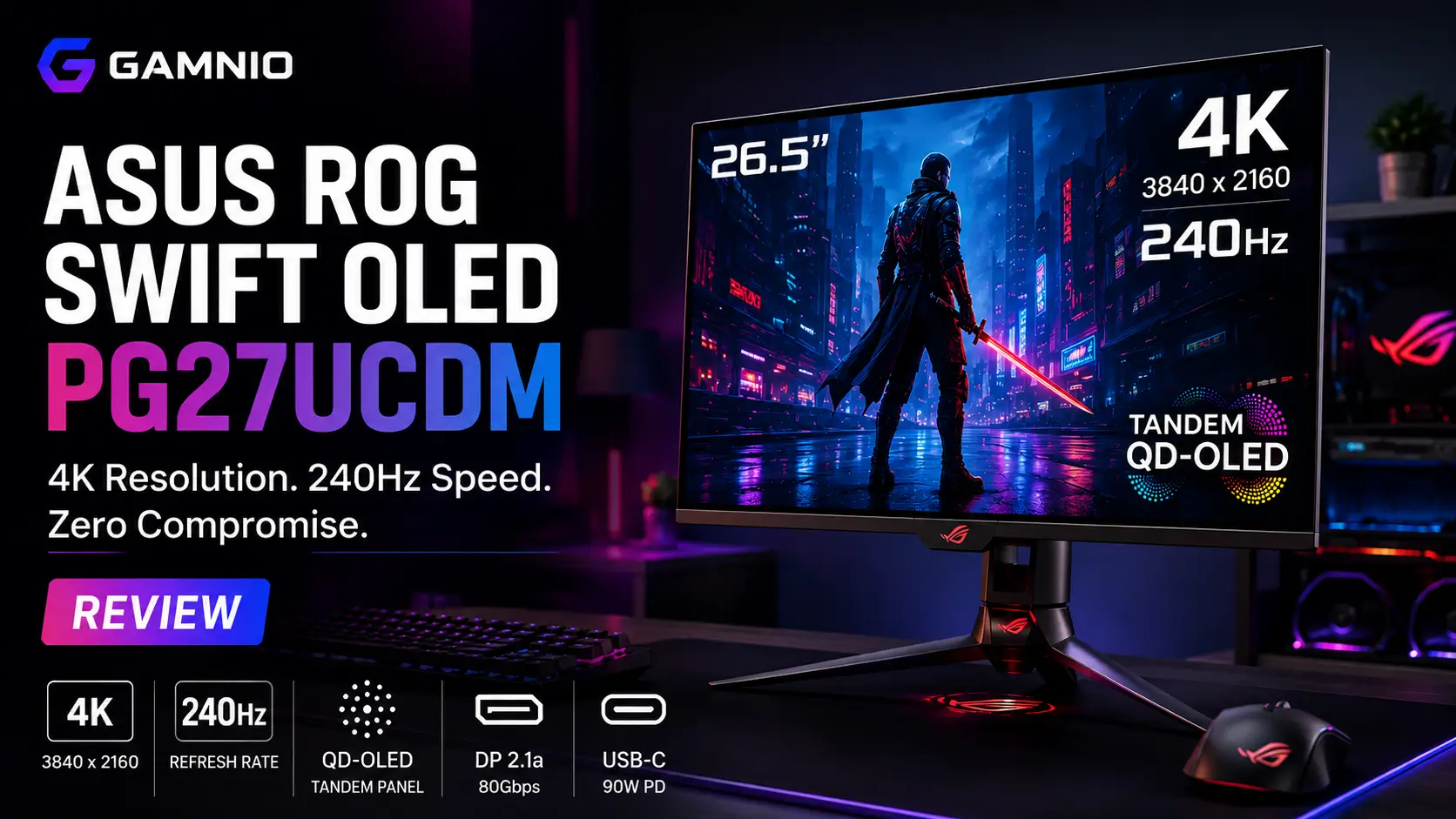

The ASUS ROG Swift OLED PG27UCDM is worth its premium price if you want 4K resolution and a 240Hz refresh rate on the same screen, with zero compromise between the two. That combination is still rare in 2026. This monitor suits enthusiast PC gamers with a GPU powerful enough to drive 4K at high frame rates, as well as hybrid users who want a single screen for gaming and creative work. It’s not for anyone on a tight budget, since competing 27-inch 4K QD-OLED monitors use a similar panel for meaningfully less.
What Is the ASUS ROG Swift OLED PG27UCDM?
The ASUS ROG Swift OLED PG27UCDM is a 26.5-inch premium gaming monitor built around a Tandem QD-OLED panel that supports 4K resolution at 240Hz. ASUS positions it as a flagship display for PC gamers who won’t compromise between sharpness and speed, backed by DisplayPort 2.1a connectivity, 90W USB-C power delivery, and a built-in KVM switch.
It launched as part of ASUS’s ROG Swift OLED lineup alongside the larger 32-inch PG32UCDM, aimed specifically at buyers who want the same panel technology in a smaller, higher-density form factor. At roughly $1,099, it competes directly against the MSI MPG 272URX QD-OLED and the Alienware AW2725Q, both of which use similar 4K QD-OLED panels at lower prices.
Editor’s Verdict: Best 4K/240Hz OLED for buyers who need DisplayPort 2.1a or 90W USB-C. Skip it if you’re comparing purely on gaming performance against cheaper QD-OLED rivals.
ASUS ROG Swift OLED PG27UCDM Specs at a Glance
| Spec | Detail |
|---|---|
| Screen Size | 26.5″ viewable (27″ class) |
| Panel | Tandem QD-OLED |
| Resolution | 3840 x 2160 (4K) |
| Refresh Rate | 240Hz |
| Response Time | 0.03ms (GtG) |
| Color | 99% DCI-P3, 10-bit, Delta E <2 (ASUS spec) |
| Contrast | 1,500,000:1 typical (ASUS spec) |
| HDR | Dolby Vision, HDR10, VESA DisplayHDR 400 True Black |
| Sync | G-Sync Compatible, FreeSync Premium Pro |
| Connectivity | DisplayPort 2.1a (UHBR20, 80Gbps), 2x HDMI 2.1, USB-C (90W PD, DP Alt Mode) |
| Extras | USB hub, KVM switch, 100x100mm VESA mount |
| Warranty | 3 years, including panel burn-in (per ASUS) |
| Price | ~$1,099 (ASUS US store) |
A few of these numbers need context beyond the spec sheet. 80Gbps DisplayPort 2.1a sounds like a big deal, but no current consumer GPU fully saturates that bandwidth yet. In practice, it means the PG27UCDM can run 4K at 240Hz without Display Stream Compression today, but the port’s full ceiling is more about future-proofing than something your current GPU will max out. The 1,500,000:1 contrast and Delta E <2 figures are ASUS’s own numbers; real-world performance is close but not identical, which we cover in the display quality section below.
Design and Build Quality
The PG27UCDM looks and feels like a premium ROG monitor, but its stand is the one design decision we’d push back on. It’s larger than it needs to be, and we found it eats up more desk depth than competing 27-inch OLEDs, pushing the panel closer to your face than a flat stand would at the same seating position. If your desk is shallow, measure before you buy.
Beyond the stand, the fundamentals are solid. Height, tilt, swivel, and pivot adjustments all work smoothly, and the 100x100mm VESA mount is a straightforward option if you’d rather ditch the included stand entirely in favor of a multi-monitor arm setup. Cable management is handled through a basic clip-style routing channel, nothing fancy, but functional. The rear I/O panel is easy to access even with the monitor mounted, which isn’t true of every gaming monitor in this price bracket.
On the OLED-specific side, the PG27UCDM includes a heatsink designed to help manage panel temperature during extended sessions and a Neo Proximity Sensor that dims the display automatically when you step away — a small but genuinely useful burn-in mitigation feature that runs in the background without you having to think about it.
Display Quality: How Good Is the 4K Tandem QD-OLED Panel?
The PG27UCDM’s biggest strength is pixel density. Cramming 4K resolution into a 26.5-inch panel produces roughly 166 pixels per inch, sharp enough that text and fine UI details look noticeably crisper than on a 1440p OLED of the same size, and QD-OLED’s usual subpixel fringing on text becomes far less noticeable at this pixel density.
In a dark room, blacks are deep and uniform with no blooming, since each OLED pixel controls its own light output independently. Color saturation is vivid, and ASUS’s 99% DCI-P3 coverage claim holds up well in our testing, though our measured Delta E was slightly higher than ASUS’s stated < 2 figure. Colors look excellent to the eye, but if you do color-critical creative work, plan on calibrating rather than trusting the factory profile.
The honest trade-off: dark scenes take on a slight purple tint in a bright room. This is a known QD-OLED characteristic, not unique to this panel, but it means the PG27UCDM performs best with the lights dimmed. The anti-reflection coating handles glare reasonably well under normal room lighting, but direct sunlight or a bright window behind you will wash out contrast the same way it does on any glossy panel.
4K at 240Hz: Is the PG27UCDM Fast Enough for Gaming?
The PG27UCDM’s 240Hz ceiling is fast enough that competitive shooters like Valorant or Counter-Strike feel meaningfully smoother than at 144Hz, provided your GPU can sustain that frame rate at 4K. Realistically, that means an RTX 4080 or better for most demanding titles. Response time stays fast and consistent across the full refresh range, so motion blur isn’t something you’ll notice during actual gameplay, and input lag is low enough that we didn’t feel any disconnect between mouse movement and on-screen action.
Here’s the issue nobody puts front and center: the PG27UCDM has noticeable VRR flicker. When your frame rate fluctuates, as it does in almost every real game, not just synthetic benchmarks, the panel can visibly flicker as it adjusts. We ran into this during testing, and ASUS’s OLED Anti-Flicker 2.0 feature, which ASUS claims reduces flicker by 20% compared to the previous generation, didn’t fully eliminate it in our experience. Treat that 20% figure as a manufacturer’s claim rather than an independently verified number.
If you run into this, a few things actually help:
- Cap your frame rate slightly below 240fps using NVIDIA Reflex or an in-game limiter. A stable 235fps cap flickers less than an uncapped rate bouncing between 180-240fps.
- Narrow your VRR range in the Nvidia Control Panel or AMD Software by raising the minimum refresh rate, which reduces how far the panel swings between frames.
- Test the anti-flicker OSD setting both on and off. In some games, we found it helped; in others, it made no perceptible difference.
DisplayPort 2.1a’s practical benefit today is running 4K at 240Hz without compression artifacts, which matters most in fast-paced competitive titles where DSC’s minor compression could theoretically introduce a frame of latency. In everyday use, most people won’t see a visible difference between compressed and uncompressed 4K/240Hz.
HDR and OLED Gaming Performance
Don’t judge this monitor’s HDR purely by the advertised 1,000-nit peak brightness figure. That number applies to small highlight windows, not full-screen brightness, which is how OLED panels behave across the board. In practice, this means a small sun or muzzle flash in a game can look genuinely blinding, while a fully bright HDR scene won’t reach anywhere near 1,000 nits sustained.
With that context, HDR games do look substantially better than SDR on this panel. The combination of true blacks and bright, punchy highlights gives dark, atmospheric titles like Alan Wake 2 a sense of depth that LCD monitors, even good ones with local dimming, can’t fully replicate. Dolby Vision support is a genuine differentiator here; most competing QD-OLED gaming monitors, including the Alienware AW2725Q, support HDR10 only. If you regularly watch Dolby Vision content on a PC, it adds real value that a spec-sheet comparison alone won’t show.
Text Clarity and Productivity
If you’re considering this monitor for work as well as gaming, text clarity is one of the better reasons to pick the PG27UCDM over a 1440p OLED. At this pixel density, text renders sharp enough for spreadsheet work, long-form writing, and coding without the eye strain that lower-resolution OLED panels can cause at small font sizes. Windows ClearType renders cleanly at 100% and 125% scaling; macOS users will find native scaling options work well too.
The one thing to plan around is the same one that applies to every OLED used for productivity: static elements like a taskbar, browser tab bar, or code editor sidebar left on screen for hours at a time increase the risk of burn-in more than gaming does. If your workflow is dominated by static UI chrome, it’s worth varying your window layout occasionally or using auto-hide taskbar settings.
OLED Burn-In: How Well Does ASUS Protect the PG27UCDM?
Burn-in happens when static image elements, a taskbar, a HUD, a channel logo, are displayed in the same spot long enough that the OLED pixels there age faster than the rest of the panel, leaving a faint, permanent ghost of that element. It’s a real risk with any OLED, including the PG27UCDM, not a myth.
ASUS’s OLED Care Pro suite addresses this with a handful of features working together: automatic pixel refresh cycles that run periodically to even out pixel wear, logo dimming that reduces brightness on static bright elements, and the Neo Proximity Sensor mentioned earlier, which dims the panel when nobody’s in front of it. These features reduce the risk of burn-in; they don’t eliminate it. ASUS backs this up with a three-year warranty that explicitly includes panel burn-in, which is a meaningful confidence signal, but it’s a safety net, not a substitute for basic care like varying your content and enabling auto-hide for static UI elements.
For anyone whose main hesitation about buying an OLED monitor is burn-in, the practical takeaway is this: normal gaming and mixed-use behavior is low-risk, and the warranty covers you if something does go wrong within three years. The people who should be more cautious are those running the same static dashboard or spreadsheet application at max brightness for eight-plus hours a day, every day, for years.
Connectivity, USB-C, and KVM
The PG27UCDM’s connectivity is genuinely one of its strongest arguments over cheaper QD-OLED alternatives. DisplayPort 2.1a, with 80 Gbps bandwidth, supports 4K at 240Hz without compression, as covered above. Two HDMI 2.1 ports mean you can connect a PS5 or Xbox Series X at full 4K/120Hz alongside a gaming PC without unplugging cables to switch. USB-C supports DisplayPort Alt Mode and 90W power delivery, which we tested by charging a gaming laptop through the monitor. It worked as a genuine one-cable docking solution, charging the laptop while also carrying the video signal.
The built-in KVM switch is useful if you regularly switch between two computers, say, a gaming PC and a work laptop, using the same keyboard and mouse. We tested this with two machines connected simultaneously, and switching between them was quick and didn’t require re-pairing peripherals each time.
Gaming Features and OSD
Beyond the core panel performance, the PG27UCDM includes ASUS’s usual suite of gaming-focused extras: GamePlus overlays for crosshairs and timers, Game Visual picture presets tuned for different genres, Shadow Boost to brighten dark areas in competitive shooters, and ELMB (Extreme Low Motion Blur) for reduced motion blur at lower refresh rates when you’re not maxing out 240Hz. ASUS’s DisplayWidget Center software lets you control most of these settings from Windows instead of digging through the OSD.
Honestly, most of these features are nice-to-haves rather than reasons to buy the monitor. Shadow Boost and the crosshair overlays are the two we actually use; the rest are there for players who want them, without adding much for those who don’t.
ASUS ROG Swift OLED PG27UCDM vs the Competition
| Monitor | Resolution | Refresh Rate | Panel | Key Differentiator |
|---|---|---|---|---|
| ASUS ROG Swift OLED PG27UCDM | 4K | 240Hz | Tandem QD-OLED | DP 2.1a 80Gbps, 90W USB-C, KVM |
| MSI MPG 272URX QD-OLED | 4K | 240Hz | QD-OLED | Similar spec sheet, often priced lower |
| Alienware AW2725Q | 4K | 240Hz | QD-OLED | HDR10 only, no KVM, lower price |
| ASUS ROG Swift OLED PG32UCDM | 4K | 240Hz | QD-OLED | 32-inch alternative for more screen real estate |
Better if you want DisplayPort 2.1a and 90W USB-C charging: the PG27UCDM. Better if you’re comparing purely on price and don’t need those specific connectivity features: the MSI MPG 272URX or Alienware AW2725Q, both of which deliver very close gaming performance for less. Better if you want more screen real estate at the same refresh rate: the ASUS ROG Swift OLED PG32UCDM, at the cost of a larger desk footprint.
ASUS PG27UCDM Price and Value
ASUS’s US store currently lists the PG27UCDM at $1,099. Check current pricing before you buy, since monitor prices change frequently due to sales and regional availability. At full price, you’re paying a premium over the Alienware AW2725Q and MSI MPG 272URX specifically for DisplayPort 2.1a, 90W USB-C, the KVM switch, and ASUS’s OLED Care Pro suite and three-year burn-in warranty.
The verdict on value: If you specifically need any of those connectivity features, the premium is justified. If you’re a PC-only gamer with no laptop to dock and no need for a KVM switch, the Alienware AW2725Q delivers a nearly identical gaming experience for less, and that price difference would be better spent elsewhere in your setup.
Who Should Buy the ASUS ROG Swift OLED PG27UCDM?
- Enthusiast PC gamers with a GPU capable of driving 4K at high refresh rates
- Users who prioritize pixel density and want a 27-inch form factor rather than 32 inches
- Buyers who need 90W USB-C laptop charging or a KVM switch built into the monitor
- Anyone who wants OLED image quality without sacrificing desktop text clarity
- Hybrid PS5-and-PC households who want one screen for both, since the HDMI 2.1 ports fully support the PS5’s 4K/120Hz VRR output
Who Shouldn’t Buy the ASUS PG27UCDM?
- Buyers on a tight budget, the MSI MPG 272URX and Alienware AW2725Q offer close performance for less
- Anyone who strongly prefers a 32-inch screen for immersion or extra desktop space
- Users whose GPU can’t approach high frame rates at 4K, since you’d be paying for refresh rate headroom you can’t use
- Workflows dominated by static desktop content that don’t want to think about burn-in management at all
- PS5-only households with no gaming PC, a cheaper 4K/120Hz monitor with HDMI 2.1 covers that use case for meaningfully less
ASUS ROG Swift OLED PG27UCDM Review Verdict
Best thing about it: genuinely uncompromising 4K/240Hz OLED image quality in a 27-inch, high-pixel-density format, backed by connectivity (DisplayPort 2.1a, 90W USB-C, KVM) that competing panels at this size don’t match.
Biggest weakness: the price premium over very similar QD-OLED panels from MSI and Alienware, plus the VRR flicker that ASUS’s anti-flicker tech doesn’t fully solve
.Best for: high-end PC gamers and hybrid PS5/PC users who specifically value the extra connectivity.
Not ideal for: budget-conscious buyers, 32-inch loyalists, or anyone who just wants the cheapest path to a 4K/240Hz OLED gaming experience.
Final verdict: at $1,099, the PG27UCDM is worth buying if you’ll actually use its DisplayPort 2.1a bandwidth, USB-C charging, or KVM switch. If none of those apply to your setup, the Alienware AW2725Q gets you nearly the same gaming experience for less, and that’s the more sensible buy for a PC-only gaming rig.
Frequently Asked Questions
Is the ASUS PG27UCDM worth it?
Yes, if you need DisplayPort 2.1a, 90W USB-C charging, or a built-in KVM switch. If you’re a PC-only gamer without those needs, the Alienware AW2725Q delivers nearly identical gaming performance at a lower price.
Is the ASUS PG27UCDM true 4K 240Hz?
Yes. It has a native 3840 x 2160 resolution and a 240Hz maximum refresh rate, with DisplayPort 2.1a’s 80Gbps bandwidth supporting that combination without compression.
Does the PG27UCDM have HDMI 2.1?
Yes, it includes two HDMI 2.1 ports, alongside DisplayPort 2.1a and USB-C with DisplayPort Alt Mode.
Does the ASUS PG27UCDM have USB-C?
Yes. Its USB-C port supports DisplayPort Alt Mode and up to 90W of power delivery, enough to charge most gaming laptops through a single cable.
Does the PG27UCDM have OLED burn-in protection?
Yes, through ASUS’s OLED Care Pro suite, including automatic pixel refresh and the Neo Proximity Sensor. ASUS backs this with a three-year warranty that includes panel burn-in, though these features reduce risk rather than eliminate it entirely.
Is 27-inch 4K too small?
No, but it’s a personal preference. A 27-inch 4K panel delivers very high pixel density and sharp text, which suits desk setups well. If you want more immersion or extra desktop real estate, a 32-inch 4K OLED like the ASUS ROG Swift OLED PG32UCDM is worth considering instead.

Leave a Reply