
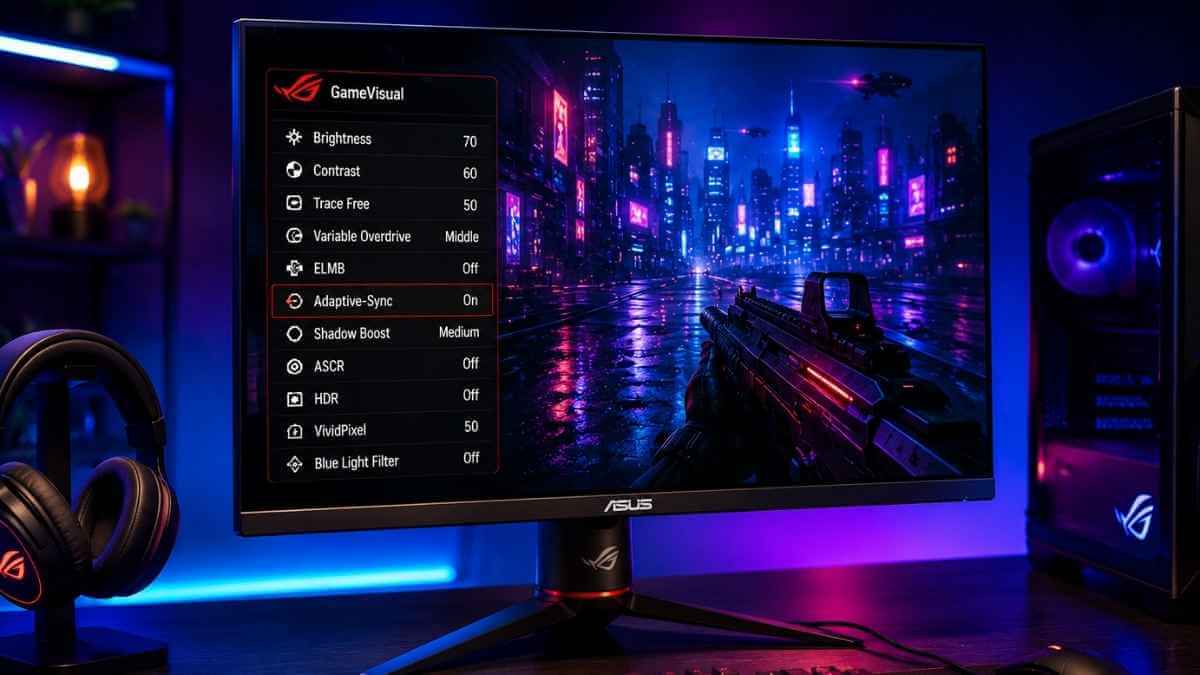

Best ASUS Monitor Settings for Gaming in 2026
Finding the best ASUS monitor settings for gaming can improve motion clarity, visibility, color quality, and responsiveness. However, no single setup works perfectly for every ASUS monitor or game. This guide covers refresh rate, brightness, contrast, GameVisual modes, Trace Free or Variable Overdrive, ELMB, Adaptive-Sync, HDR, and practical settings for ASUS TUF, ROG, VG, PS5, and Xbox setups.
How These ASUS Monitor Settings Were Selected
These recommendations come from ASUS monitor feature sets, Windows display options, GPU control panels, and general display setup principles used across gaming monitors. They are not a single fixed formula. Because ASUS sells dozens of models across TUF, ROG, and VG lines, exact menu names and available options vary by panel type, firmware version, GPU, cable, room lighting, and the game you are playing. Treat every value in this guide as a practical starting point. You may need to compare a few options in your own setup before settling on a final configuration.
If you are not sure how panel type affects gaming performance, our guide on monitor panel types explains the differences between IPS, VA, TN, and OLED displays.
Quick Answer: Best ASUS Monitor Settings for Gaming
The best ASUS monitor settings for gaming usually start with the highest supported stable refresh rate, Trace Free or Variable Overdrive at a moderate level, and Adaptive-Sync, FreeSync, or G-SYNC Compatible enabled when supported. Competitive FPS games benefit from controlled Shadow Boost and consistent brightness, while RPG and story-driven games generally look better with warmer colors and balanced contrast. Use the values below as starting points because ideal settings vary by ASUS model, panel type, room lighting, GPU, connection, and game.
Setting Recommended Starting Point
Brightness 65–80% for FPS; 50–70% for RPG/story games
Contrast Start with the default setting; usually 50–70%
Refresh Rate Highest supported stable rate
Trace Free 40–60, if your model uses the numerical scale
Variable Overdrive Start with a middle level, if available
Adaptive-Sync / FreeSync / G-SYNC Compatible On, if supported
ELMB Off initially; test separately
ELMB Sync Test with VRR on supported models
ASCR / Dynamic Contrast Off
HDR Off initially for FPS; test in supported HDR games
Shadow Boost Low or Medium for competitive games
GameVisual Mode Racing or User Mode as a balanced starting point
VividPixel / Sharpness Default or Low
Note: ASUS monitor controls vary by model. Some monitors use numerical Trace Free settings, while newer models may provide Variable Overdrive levels instead. ELMB Sync can work with Adaptive-Sync or other VRR technologies only on supported ASUS monitors.
Set the Highest Refresh Rate on Your ASUS Monitor
Refresh rate determines how often your ASUS monitor updates the image each second. A higher refresh rate can make camera movement and fast action look smoother and easier to track. Depending on the model, ASUS gaming monitors may support refresh rates such as 120Hz, 144Hz, 165Hz, 180Hz, 240Hz, or higher.
Windows may not automatically use the highest refresh rate supported by your ASUS monitor. In Windows 11, open Settings> System> Display> Advanced display , select your ASUS monitor, and choose the highest supported option under Choose a refresh rate. If the expected option is missing, check the selected resolution, GPU output, cable, monitor port, and the supported timing listed in your model’s user manual.
On NVIDIA systems, you can also confirm the refresh rate inside the NVIDIA Control Panel under Display resolution settings. AMD Software Adrenalin includes a similar display tab. Your actual maximum refresh rate depends on your cable type, the port you use, your chosen resolution, and whether your GPU can output that combination.
If you are still choosing a display, our guide on how to choose a monitor for gaming explains refresh rate, resolution, response time, and panel type in more detail.
Refresh Rate Options
Refresh Rate Best For
60Hz Casual gaming
120Hz Console gaming
144Hz Entry-level competitive gaming
165Hz / 180Hz Smooth FPS gaming
240Hz or higher Competitive gaming with high FPS
Best Brightness and Contrast Settings for ASUS Gaming Monitors
Brightness controls how visible details are in both bright and dark scenes, while contrast controls the gap between shadows and highlights. Both affect visibility and comfort, not just picture quality.
Running brightness too high in a dark room can cause eye strain during long sessions. Running it too low can hide enemy detail in shadows, which matters in competitive FPS titles. In most cases, starting from the monitor’s default contrast and adjusting from there works better than resetting contrast from scratch.
Use Case Brightness Contrast
FPS Gaming 65 to 80% 50 to 65%
RPG / Story Games 50 to 70% 55 to 70%
Console Gaming 55 to 75% 55 to 70%
Night Gaming 30 to 55% 50 to 65%
For players using IPS displays, our guide on IPS technology in monitors explains why viewing angles, color consistency, and contrast can behave differently during gaming.
Best GameVisual Mode for ASUS Monitors
ASUS GameVisual is a set of preset picture modes built into most ASUS gaming monitors. Each mode adjusts color, contrast, and sharpness for a different type of content.
Racing Mode balances color and contrast for general gaming and is a safe starting point for most players.
FPS Mode boosts visibility in dark areas but can oversaturate colors as a result.
RTS/RPG Mode favors detail and color depth over speed-focused clarity.
Cinema Mode is tuned for movies and story-driven content, not competitive play.
sRGB Mode targets color accuracy, which helps color-critical work more than gaming punch.
MOBA Mode sharpens UI elements and map visibility for strategy titles.
User Mode lets you build a custom combination of brightness, contrast, and color.
Racing Mode or User Mode works well as a default because both avoid the oversaturation that FPS Mode can introduce. Depending on your ASUS model, some of these presets may use slightly different names.
Best Trace Free and Overdrive Settings for ASUS Monitors
Trace Free is ASUS’s name for its overdrive-style pixel response setting. It pushes pixels to change color faster, which can reduce ghosting and motion blur behind fast-moving objects.
On some newer ASUS monitors, this setting may appear as Variable Overdrive instead of Trace Free. In that case, start with a middle level and avoid the strongest mode until you test for overshoot.
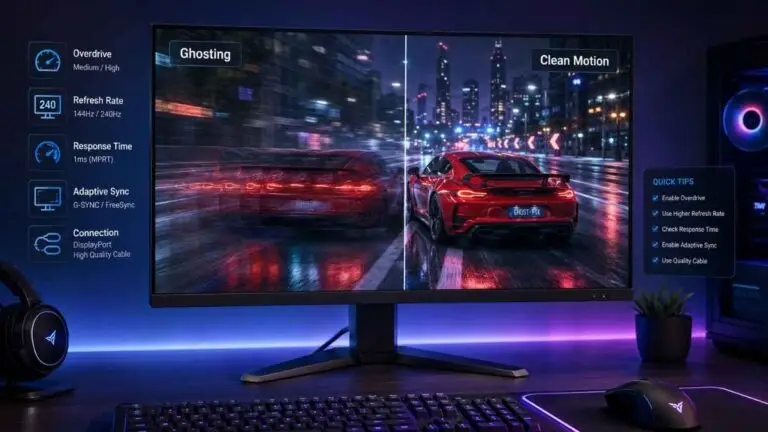
However, setting Trace Free too high can overshoot the pixel transition. This creates inverse ghosting, which shows up as bright or dark trails around moving objects. Because this effect varies by panel, 40 to 60 is a safer starting range for most ASUS monitors. Values of 80 or 100 should only be used after testing, since some panels handle high overdrive better than others.
Trace Free Setting Best Use
0 to 20 Slower games or if overshoot appears
40 to 60 Best starting range for most ASUS monitors
80 Try only if ghosting is visible
100 Use only if no inverse ghosting appears
Should You Enable FreeSync, G-SYNC, or Adaptive-Sync?
Adaptive-Sync, FreeSync, and G-SYNC Compatible all sync your monitor’s refresh rate to your GPU’s frame rate. This reduces screen tearing and uneven frame pacing during gameplay.
If you have an AMD GPU, enable FreeSync when your ASUS model supports it. If you have an NVIDIA GPU, you can enable G-SYNC Compatible mode when supported, though not every ASUS FreeSync monitor is officially certified as G-SYNC Compatible. Console players can enable VRR (Variable Refresh Rate) on supported ASUS models connected to a PS5 or Xbox Series X/S.
For the smoothest experience, cap your in-game frame rate a few frames below your monitor’s maximum refresh rate. This keeps frame rates inside the sync range more consistently.
Should You Use ELMB or ELMB Sync on ASUS Monitors?
ELMB, short for Extreme Low Motion Blur, is ASUS’s backlight strobing feature. It flashes the backlight between frames to reduce perceived motion blur, similar to how old CRT displays worked.
ELMB can make fast motion look sharper for some players. However, backlight strobing typically reduces screen brightness, and some users notice flicker at certain refresh rates. ELMB Sync combines motion blur reduction with VRR on supported models, but not every ASUS monitor includes ELMB Sync. Test ELMB in your own games before keeping it enabled, since the tradeoff between clarity and brightness comes down to personal preference.
Disable Unnecessary ASUS Image Processing
A few processing features add more inconsistency than benefit during gaming. Turning them off keeps the picture more predictable.
Turn off ASCR / Dynamic Contrast, since it adjusts brightness automatically and can shift mid-game.
Keep VividPixel at default or low, as higher settings can oversharpen edges.
Turn Eco Mode off while gaming, since it limits brightness output.
Set the Blue Light Filter off for FPS games and to low for night gaming sessions.
Test HDR separately rather than leaving it on by default, especially in competitive games.
Best ASUS Monitor Color Settings for Gaming
Color settings affect how accurate and comfortable the image looks over long sessions, not just how vivid it appears.
Gamma close to 2.2 is a reasonable, widely used starting point.
Normal color temperature tends to suit FPS games well.
Warm color temperature often looks more natural in RPG and story games.
Saturation should start at the default before any manual adjustment.
VividPixel or sharpness should stay default or low to avoid an artificial edge look.
Blue Light Filter shifts color temperature, so keep it off during competitive play.
Best ASUS Monitor Settings for FPS Games
Fast-paced shooters like Valorant, CS2, Apex Legends, Call of Duty, and Fortnite benefit from settings that prioritize visibility and motion clarity over color depth.
Setting Best FPS Value
Brightness 65 to 80%
Contrast 50 to 65%
Shadow Boost Low to Medium
Trace Free 40 to 60
ELMB Test before using
HDR Off initially
Refresh Rate Highest supported stable rate
Adaptive-Sync On, if stable
ASCR Off
Use the game’s own brightness or visibility calibration after setting your monitor. Valorant, CS2, Apex Legends, Call of Duty, and Fortnite handle shadows and contrast differently, so one fixed ASUS monitor FPS setting will not look identical across every title.
Best ASUS Monitor Settings for RPG, Racing, and Story Games
Not every game benefits from FPS-focused settings. Different genres put weight on different parts of the picture.
RPG and story games depend more on color depth, contrast, and comfort during long sessions than on raw speed. Racing games still benefit from high refresh rates and moderate Trace Free values, since motion clarity matters at high speed. Horror games generally look better with deeper contrast and a restrained Shadow Boost setting, since brightening every shadow removes the tension the game is built around. MOBA and strategy games depend on a clear UI and moderate sharpness so small icons and text stay readable.
Best ASUS Monitor Settings for PS5 and Xbox
Console gaming on an ASUS monitor depends on more variables than PC gaming, since the console, game, monitor, resolution, and HDMI port all need to support the same features together.
Use 120Hz only if your console, the specific game, your ASUS monitor, and your chosen resolution all support it, along with a compatible HDMI port. Enable VRR when your monitor supports it, since this reduces tearing on console the same way Adaptive-Sync does on PC. Use Performance Mode in games that offer it for FPS titles, and switch to Quality Mode for slower, story-driven games where resolution matters more than frame rate. Always connect through the highest-bandwidth HDMI port your ASUS monitor has, since not every ASUS monitor includes HDMI 2.1.
Budget console and PC players can also compare our picks for the best gaming monitors under $200 before choosing a new display.
ASUS Monitor Settings by Series
ASUS spreads its gaming lineup across several series, and each targets a different type of player. These are broad starting points. Exact controls and menu names vary by panel, firmware, and specific model.
ASUS Series Best Use Recommended Setup
ASUS TUF Gaming Budget and mid-range gaming Racing/User Mode, Trace Free 40 to 60, Adaptive-Sync
ASUS ROG Strix High-refresh gaming Max refresh, Adaptive-Sync, controlled Shadow Boost
ASUS ROG Swift Premium competitive gaming Max refresh, G-SYNC or VRR, low processing
ASUS VG Series Budget FPS gaming Trace Free 40 to 60, FreeSync if supported
ASUS ProArt Color-focused work and casual gaming sRGB/User Mode, accurate color, moderate refresh
If you want a stronger upgrade with better resolution, refresh rate, or display features, check our guide to the best gaming monitors under $600.
Common ASUS Monitor Settings Mistakes to Avoid
Common ASUS monitor settings mistakes include leaving the display at 60Hz, setting Trace Free too high, using ELMB without testing, keeping ASCR enabled, and ignoring Adaptive-Sync. These issues can reduce smoothness, create inverse ghosting, lower brightness, or limit the refresh rate your monitor can actually use.
Leaving the Monitor at 60Hz
Windows can default a high-refresh ASUS monitor to 60Hz after a driver update or fresh install. Always confirm your refresh rate in Advanced Display settings.
Setting Trace Free Too High
Pushing Trace Free to maximum without testing can cause inverse ghosting, which appears as bright or dark trails around fast-moving objects.
Using ELMB Without Testing
ELMB reduces motion blur through backlight strobing, but it typically lowers brightness and can introduce flicker on some panels.
Keeping ASCR On
Dynamic Contrast adjusts brightness automatically based on scene content, which creates inconsistent visibility during gameplay.
Ignoring Adaptive-Sync
Leaving Adaptive-Sync or FreeSync disabled increases the chance of screen tearing and uneven frame pacing, especially at variable frame rates.
Using the Wrong HDMI or DisplayPort Cable
Older or lower-spec cables can limit refresh rate and resolution, even when both the GPU and monitor support higher output.
If these settings still don’t fix your motion clarity, the panel itself may be the bottleneck; our best gaming monitor guide covers newer displays worth considering.Troubleshooting ASUS Monitor Gaming Issues
Most ASUS monitor gaming issues come from refresh rate settings, cable limits, Trace Free levels, ELMB behavior, HDR settings, or disabled Adaptive-Sync. Checking these areas first can help fix common problems like ghosting, screen tearing, washed-out colors, dim ELMB, and monitors stuck at 60Hz.
Problem Likely Cause Fix
ASUS monitor stuck at 60Hz Windows, cable, port, or resolution limit Check Advanced Display and connection
Ghosting Trace Free is too low, or a panel limitation Try 40 to 60 first
Bright inverse trails Trace Free is too high Lower Trace Free
ELMB looks dim Backlight strobing reduces brightness Disable ELMB or raise brightness
Screen tearing Adaptive-Sync off Enable supported VRR
Washed-out colors HDR, ASCR, or wrong preset Disable HDR or use User Mode
FAQs About ASUS Monitor Settings for Gaming
What are the best ASUS monitor settings for gaming?
The best ASUS monitor settings for gaming are the highest stable refresh rate, Trace Free at 40 to 60, Adaptive-Sync enabled if supported, and ASCR turned off. Use 65 to 80% brightness for FPS games and 50 to 70% brightness for RPG, story, or console gaming.
What is the best Trace Free setting for ASUS monitors?
The best Trace Free setting for most ASUS gaming monitors is usually 40 to 60. This range helps reduce ghosting without creating strong inverse ghosting. Higher values, such as 80 or 100, should only be used after testing because aggressive overdrive can create bright or dark motion trails.
Should I use ELMB on ASUS monitors?
You should use ELMB on ASUS monitors only after testing it in your games. ELMB can reduce perceived motion blur, but it often lowers brightness and may cause visible flicker. ELMB Sync is useful only on supported models where blur reduction and variable refresh rate can work together.
What is the best GameVisual mode for gaming?
The best GameVisual mode for most ASUS gaming monitors is Racing Mode or User Mode. Racing Mode gives balanced color and contrast for general gaming, while User Mode allows manual control. FPS Mode can improve dark-area visibility, but it may oversaturate colors or reduce shadow accuracy.
Should ASCR be on or off for gaming?
ASCR should usually be off for gaming because it changes contrast and brightness automatically based on the scene. This can make visibility inconsistent during gameplay. Turning ASCR off keeps shadow detail, brightness, and contrast more stable, especially in FPS games where consistent visibility matters.
Why is my ASUS monitor stuck at 60Hz?
An ASUS monitor can stay stuck at 60Hz because of Windows display settings, the selected resolution, the cable, the monitor port, or the GPU output limit. Check Advanced Display settings first, then confirm that your HDMI or DisplayPort connection supports the monitor’s target refresh rate.
Is HDR good on ASUS gaming monitors?
HDR is good on some ASUS gaming monitors, but results depend on brightness, contrast, local dimming, and HDR certification. Many budget monitors accept HDR signals but do not show strong HDR performance. For competitive FPS games, keep HDR off first and test it separately in supported story games.
Should I use HDMI or DisplayPort for ASUS gaming?
Use DisplayPort for ASUS PC gaming when you want high refresh rates, Adaptive-Sync, or maximum resolution support. Use HDMI for PS5, Xbox, or simple PC setups. For 120Hz console gaming, the ASUS monitor, console, cable, HDMI port, resolution, and game must all support the same output.
Final Verdict: Best ASUS Monitor Settings for Gaming
FPS players get the most benefit from maximum refresh rate, Trace Free at 40 to 60, and Shadow Boost set to Low or Medium. RPG players tend to prefer warmer color temperatures, balanced contrast, and HDR only in games where it visibly helps. Console users should prioritize 120Hz, VRR, and the correct HDMI port for their model. General users can start with Racing or User Mode paired with Adaptive-Sync enabled.
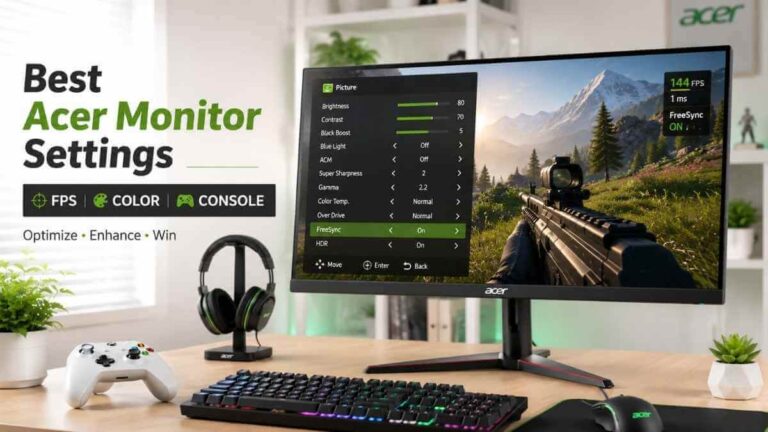
If you also use an Acer display, our guide on best Acer monitor settings for gaming covers similar refresh rate, brightness, contrast, Overdrive, and console setup tips.
Every value in this guide is a starting point, not a fixed rule. Your ideal setup depends on your specific ASUS model, panel type, GPU, and the games you play most.



Leave a Reply