
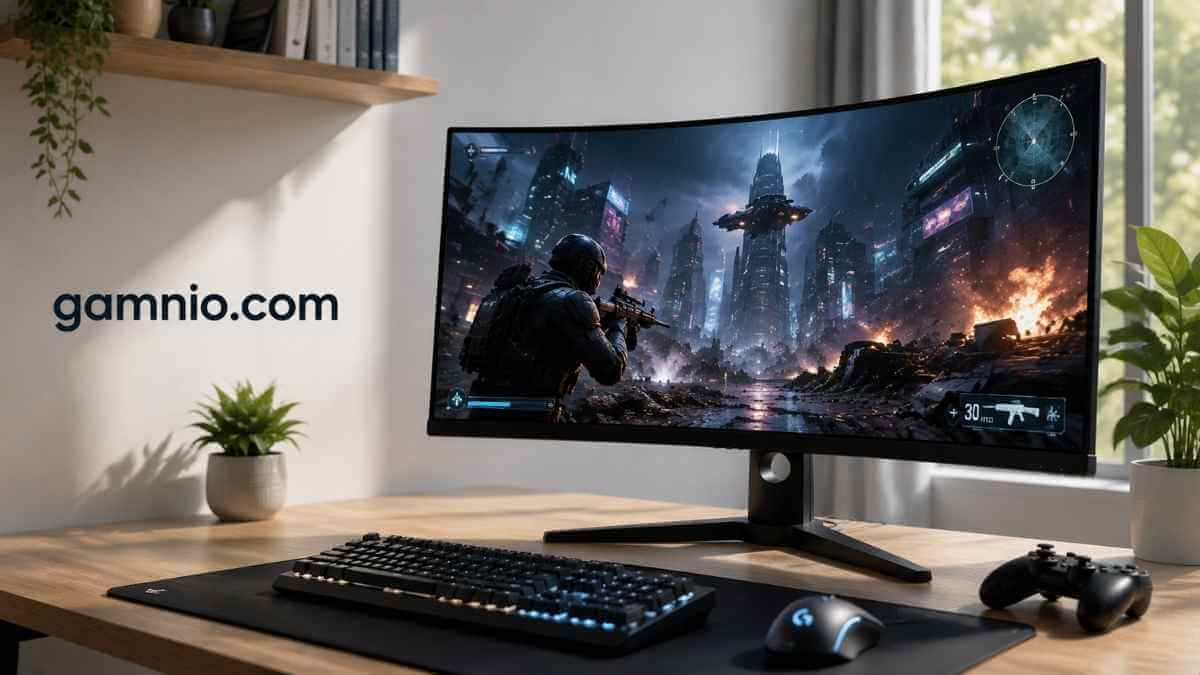

You’re eyeing that big curved screen, imagining how much more immersive your favourite open-world RPG or flight sim would feel. The promise is real: a 32-inch curved monitor can pull you into the game like nothing else. But it can also leave you frustrated if your desk is too shallow, your GPU is struggling, or you mainly play competitive shooters. This article strips away the hype and gives you the concrete details you need to decide no filler, just practical guidance backed by real-world experience.
Quick Answer:
A 32-inch curved gaming monitor is a strong choice for immersive single-player games, racing, simulators, and multitasking, especially at 1440p or 4K. It works best with a sufficiently deep desk and a viewing distance of roughly 70–100 cm. However, a smaller flat monitor may be better for competitive shooters, shallow desks, or shared viewing.
What Defines a 32-Inch Curved Gaming Monitor?
A 32-inch curved gaming monitor is a display that bends inward around your field of view. The diagonal measurement is 32 inches, and the curvature is expressed as a radius rating of 1000R, 1500R, or 1800R. The lower the number, the tighter the bend. These monitors typically pair that curve with a high refresh rate, adaptive sync support, and either 1440p or 4K resolution.
Curvature Explained
The “R” stands for the radius of a circle that the screen would form if you extended the curve. A 1000R monitor would be part of a circle with a 1-metre radius, a tight, almost wraparound feel. Here’s how the three common ratings compare:
| Curvature | Radius | Typical Experience |
|---|---|---|
| 1000R | 1 m | Very immersive, matches natural eye arc at around 1 m distance |
| 1500R | 1.5 m | Balanced, good for both gaming and productivity |
| 1800R | 1.8 m | Gentle curve, close to a flat-screen look |
In practice, 1500R is the most common on 32-inch models because it offers strong immersion without exaggerating distortion on straight lines during desk work.
Common Specifications
Most 32-inch curved gaming monitors share a few baseline specs: 1440p resolution (2560×1440) as the sweet spot, refresh rates from 144 Hz to 240 Hz, and a VA or IPS panel. The VA panel is favoured for its deep blacks and high contrast, ideal for dark scenes in single-player titles. IPS panels trade some contrast for better colour accuracy and wider viewing angles. More expensive models now use OLED panels with near-infinite contrast and sub-millisecond response times.
The Immersion Factor: Why Curve Matters for Gaming
Curved screens work because they match the natural shape of your visual field. Your eyes and brain are wired to perceive depth and space in a curved arc, not on a flat plane. When the edges of the screen angle toward you, your peripheral vision picks up more of the scene without you having to turn your head. For games that place you inside an environment a racing cockpit, a dense forest, a starship bridge this difference is tangible. The world feels like it wraps around you rather than existing behind a window.
That said, the effect depends entirely on sitting at the right distance. Sit too close, and the edges can look warped. Sit too far, and the curve becomes unnoticeable. A 32-inch curved monitor rewards careful desk setup more than a flat one does.
Key Benefits Beyond Immersion
Reduced Peripheral Strain
Because the screen edges bend toward you, your eyes don’t have to travel as far to see the corners. This may sound minor, but during a four-hour session, the difference in eye fatigue is noticeable. Some users report less neck movement too, because you don’t instinctively lean forward to see the minimap or health bar at the far side of the display.
More Effective Multitasking
The extra horizontal space on a 32-inch curved panel makes it practical to run a game window side-by-side with Discord, a browser, or streaming software. The curve keeps the secondary content closer to your main focus, so glancing over doesn’t feel like turning to a separate monitor. Streamers and content creators especially benefit from this layout.
Cinematic Single-Player Experience
Story-driven games with sweeping landscapes, tight interiors, or dramatic cutscenes look noticeably better on a curved 32-inch screen. The curve adds a subtle depth effect that flattens out on a straight panel. Racing and flight sim titles are the most obvious winners, but even slower-paced RPGs benefit when you’re exploring a detailed world.
The Trade-Offs You Should Know
Desk Space Requirements
A 32-inch curved monitor is physically deeper than a flat 32-inch model because of the stand base and the bend itself. You need at least 70–80 cm of desk depth to place the monitor at a comfortable distance. On a typical 60 cm deep desk, you’ll be too close; the curve will feel exaggerated, and the screen may overwhelm your field of view, causing eye strain rather than immersion.
Pixel Density at Different Resolutions
Pixel density (PPI) determines how sharp text and fine details appear. On a 32-inch screen:
- 1080p gives roughly 69 PPI, visibly soft, with jaggies on text edges.
- 1440p gives about 93 PPI, sharp enough for clear text and game details, the recommended baseline.
- 4K gives about 137 PPI, extremely sharp, but demands a powerful GPU to maintain high frame rates.
If you’re coming from a 24-inch 1080p monitor, the jump to 32-inch 1440p is a clear upgrade. Staying at 1080p on a 32-inch is a downgrade in clarity.
Competitive Gaming Limitations
In fast-paced esports titles like Valorant, Overwatch 2, or Counter-Strike 2, being able to see the entire screen in one glance is critical. A 32-inch curved monitor means you have to move your eyes or even your head to track the minimap and crosshair simultaneously. Many competitive players stick with 24-inch or 27-inch flat panels for this reason. That said, if you already play on a large screen and prefer immersion, a 240 Hz curved 32-inch can still work; it’s just not the optimal tool for the job.
Viewing Angle Constraints
Curved screens are designed for a single seated viewer directly in front. Anyone sitting beside you will see a distorted, smaller-looking image. If you often play local multiplayer or have friends watching from the side, a flat panel is more considerate.
Resolution Face-Off: 1080p, 1440p, or 4K?
The resolution you choose determines the entire character of the monitor. Use this table to match your priorities:
| Resolution | PPI at 32″ | GPU Needed | Sharpness | Best For |
|---|---|---|---|---|
| 1080p | ~69 | Low | Soft | Budget builds, extreme frame rates |
| 1440p | ~93 | Mid-range | Good | Most gamers, balanced experience |
| 4K | ~137 | High-end | Excellent | Rich single-player, work, photo editing |
The vast majority of gamers should target 1440p. It’s sharp enough to avoid the “blurry” look of 1080p without locking you into a $1,500 GPU. If you already own an RTX 4070-class card or better, 4K is worth considering for its sheer detail, but expect to lower settings to stay above 60 fps in demanding titles. For guidance on selecting the right resolution for your setup, see our detailed walkthrough on evaluating display specs.
Curvature: 1000R vs 1500R vs 1800R — Which One Fits?
Choosing the curvature is as important as the resolution. Here’s what each feels like in practice:
- 1000R — The most aggressive curve. It matches the natural viewing arc at about 1 metre. Perfect if you sit close and primary use is gaming. Straight lines (like spreadsheet borders or timeline edges) can look bowed, not ideal for professional work.
- 1500R — The balanced middle ground. It gives noticeable immersion without distorting straight lines too much. Works well for mixed gaming and productivity. This is the curve most manufacturers use for 32-inch models.
- 1800R — A subtle curve. It feels nearly flat but still reduces edge distortion slightly. If you spend a third of your time on work or design apps, 1800R is safer. You still get some immersion, but it won’t wow you the way 1000R does.
Ask yourself: do I game 80% of the time and do casual browsing the rest? Go 1500R or 1000R. Do I split time equally between gaming and graphic design or coding? Go 1800R or stick with a flat panel.
Critical Features to Evaluate Before Buying
Refresh Rate and Response Time
For most players, a 144 Hz or 165 Hz refresh rate is plenty smooth. Competitive players should look for 240 Hz or higher, but only if your GPU can consistently deliver 240+ fps in your target titles. Response time should be 1 ms MPRT or better for minimal ghosting. A good 144 Hz 1 ms VA panel beats a cheap 240 Hz IPS with poor response times.
Adaptive Sync (FreeSync / G-SYNC)
FreeSync and G-SYNC eliminate screen tearing by matching the monitor’s refresh rate to your GPU’s frame output. FreeSync works with AMD cards and many modern NVIDIA cards (via “G-SYNC Compatible” mode). Native G-SYNC modules are rarer on curved monitors and cost more. Check which standard your GPU supports before buying, and make sure the monitor lists it in its specs. For a deep look at panel types and how they affect motion clarity, read our comparison of different panel technologies.
Panel Type: VA, IPS, OLED
- VA — Deep blacks (3000:1 contrast ratio typical), good for dark games but slower pixel response can cause dark-level smearing.
- IPS — Better colour accuracy and viewing angles, weaker contrast (~1000:1). Good for both gaming and creative work.
- OLED — Perfect blacks, instant response, stunning HDR, but still expensive and at risk of burn-in if used for static desktop work for hours daily.
For pure gaming immersion, VA is the best value. For a do-everything monitor, IPS wins. For the best image quality money can buy, consider one of the best 1440p OLED gaming monitors, keeping in mind the burn-in caveat.
HDR and Connectivity
Real HDR requires high peak brightness (600 nits minimum) and local dimming zones. Many budget “HDR” monitors only accept an HDR signal without actually delivering meaningful dynamic range; they look washed out. If HDR matters, look for VESA DisplayHDR 600 certification or better. For connectivity, ensure the monitor has at least one HDMI 2.1 port (for modern consoles and GPUs) and a DisplayPort 1.4 or 2.0 for high-refresh-rate PC gaming. The HDMI 2.1 standard is essential for 4K 120 Hz on PS5 or Xbox Series X.
Ergonomics and Mounting
Height adjustment, tilt, and swivel are not common on budget curved monitors, but they should be requirements on a 32-inch screen. Without height adjustment, you’ll likely need to stack books under the base to get the top of the screen at eye level. Check for VESA mount compatibility (100×100 mm is standard) in case you decide to use a monitor arm later. For budget-friendly options that still deliver solid ergonomics, browse through our roundup of quality gaming displays under $600.
32-Inch Curved vs. 27-Inch Flat: Which Should You Pick?
The 27-inch flat monitor is the long-standing darling of gaming. Here’s how the 32-inch curved compares:
| Aspect | 32-inch Curved | 27-inch Flat |
|---|---|---|
| Immersion | High | Moderate |
| Desk space needed | 70–100 cm depth | 50–70 cm depth |
| Pixel density at 1440p | 93 PPI (good) | 108 PPI (excellent) |
| Competitive gaming | Acceptable with high refresh | Preferred by pros |
| GPU requirement | Higher (especially if 4K) | Lower at same resolution |
| Multitasking | Great for split windows | Decent but smaller |
If you have a deep desk and play mostly immersive games, the 32-inch curved is the clear winner. If you play competitively and casually, or have a shallow desk, the 27-inch flat is more versatile. For a full head-to-head between monitor sizes, the 24-inch vs 27-inch debate covers the ergonomics and field-of-view differences that also apply here.
32-Inch Curved vs. 32-Inch Flat: When Curve Helps or Hurts
When both monitors are 32 inches, the decision comes down to use case:
- Choose curved if: you sit centred, game solo, and prioritise immersion. The curve reduces edge distortion compared to a large flat panel of the same size, where the far edges fall outside your focal comfort zone.
- Choose flat if: you do any professional design or photo editing (straight lines need to stay straight), share your screen frequently, or play split-screen multiplayer. A flat 32-inch also tends to be cheaper for equivalent specs.
Ideal Viewing Distance and Desk Setup
For a 32-inch curved monitor, sit 70–100 cm (about arm’s length plus a hand span) from the screen. At that distance, a 1500R curve matches your natural eye arc, and you see the entire screen without moving your head. The top of the monitor should be at or just below eye level to keep your neck neutral.
If your desk is only 60 cm deep, you cannot achieve that distance without pulling the monitor to the very back edge and reclining your chair. In that case, consider a monitor arm that clamps to the rear of the desk to gain another 10–15 cm. Or reconsider a 27-inch model. If you’re still narrowing down sizes and budgets, our best gaming monitor guide covers top picks across every category.
Who Benefits Most? (and Who Should Skip)
Buy a 32-inch curved gaming monitor if:
- You play single-player RPGs, racing games, or simulations most of the time.
- You have a desk at least 75 cm deep.
- Your GPU can comfortably run 1440p at 60+ fps (RTX 3060 Ti / RX 6700 XT or better) or 4K at 60 fps (RTX 3080 / RX 6800 XT or better).
- You want to multitask with stream chat, Discord, or a browser alongside your game.
Skip it if:
- Your desk is 60 cm or less in depth.
- You mainly play competitive esports titles and want every split-second advantage.
- You plan to run 1080p resolution; the softness will disappoint.
- You regularly share your screen with others or need precise straight-line work.
Final Verdict
A 32-inch curved gaming monitor is an excellent investment when every condition lines up: enough desk space, a balanced 1440p resolution, and a GPU that can feed it smooth frames. The immersion gain over a flat panel is real and noticeable in the right games. But it is not a universal upgrade. Competitive players, shallow desks, and budget GPUs will undermine the experience.
If you read this far and your setup ticks the boxes, go ahead; the immersion gain over a flat panel will enhance your gaming sessions more than any other single upgrade. If you’re on the fence, start by optimising your current monitor settings first. Many flat displays perform better after proper calibration, and our guide to adjusting your monitor for gaming can help you make the most of what you already own. And if you decide the 32-inch curved isn’t right, explore the best high-refresh-rate 1440p options in the 27-inch category; you’ll still get a fantastic experience without the curve premium.
Frequently Asked Questions
Is 32 Inches Too Big for a Gaming Monitor?
It can feel too large on a shallow desk, but it works well when the user maintains a comfortable viewing distance. Provided your desk is deep enough to allow you to sit back roughly arm’s length from the screen, it will fill your vision perfectly without causing neck strain.
Is 1440p Good Enough for a 32-Inch Monitor?
Yes. A 1440p resolution generally provides a good balance of visual quality, performance, and cost at 32 inches. It delivers a pixel density of around 93 PPI, which is sharp enough for clear text and detailed gaming graphics without overloading modern mid-range GPUs.
Is 1080p Bad on a 32-Inch Gaming Monitor?
It is usable, but the lower pixel density can make text, edges, and detailed images appear less sharp when viewed closely. Sitting at standard desk distances with a 32-inch 1080p screen will result in visible pixel grids, making it a poor choice for anything other than absolute budget-focused gaming.
Is a Curved Monitor Better for FPS Gaming?
A curved monitor can improve immersion, but competitive FPS players may prefer a smaller flat monitor that allows them to see the entire screen more easily. For single-player FPS campaigns, the curve is excellent. For esports titles where tracking minimaps and UI elements is critical, it can be a hindrance.
What Is the Best Refresh Rate for a 32-Inch Gaming Monitor?
A refresh rate of 144Hz or 165Hz is suitable for most gamers. Competitive players may benefit from 240Hz or higher when their hardware can produce enough frames. Jumping from 60Hz to 144Hz provides the most noticeable, dramatic improvement in visual smoothness.
Is a 32-Inch Curved Monitor Good for Console Gaming?
Yes, particularly for consoles that support 1440p or 4K resolution and high refresh rates. HDMI compatibility should be checked before purchasing. Since the monitor uses a standard 16:9 ratio, it matches console outputs perfectly without stretching the image or applying black bars.
Is 1000R or 1500R Better for a 32-Inch Monitor?
A 1000R curve provides a stronger, more immersive effect, while 1500R offers a gentler curve that may feel more natural for mixed gaming and productivity. If you only game, 1000R is fantastic. If you also work or browse the web extensively, 1500R is generally preferred.
How Far Should I Sit from a 32-Inch Gaming Monitor?
A viewing distance of approximately 70–100 centimetres is comfortable for many users, although the ideal distance depends on resolution, curvature, and personal preference. Finding this distance ensures you are taking full advantage of the screen’s immersion without risking eye fatigue.
Are Curved Monitors Good for Everyday Work?
Yes. They can support multitasking, content viewing, and productivity, although some design professionals may prefer flat screens for evaluating straight lines. For general coding, writing, and web browsing, the curve actually aids in comfortable reading by keeping the edges equidistant to your eyes.
Does a 32-Inch Gaming Monitor Need a Powerful Graphics Card?
Monitor size does not determine GPU requirements, but higher resolutions and refresh rates do. A 32-inch 4K monitor requires significantly more graphics power than a 1080p model. You are powering the pixels, not the physical inches; ensure your GPU matches your chosen resolution.

Leave a Reply